
Manual adding people to a workflow lets staff intentionally start a workflow for selected people.
Before adding people
Create and save a workflow using the Manual Enrollment trigger. Confirm that its steps and timing are correct and that the workflow is active.
Enroll one person
- Open the person’s profile.
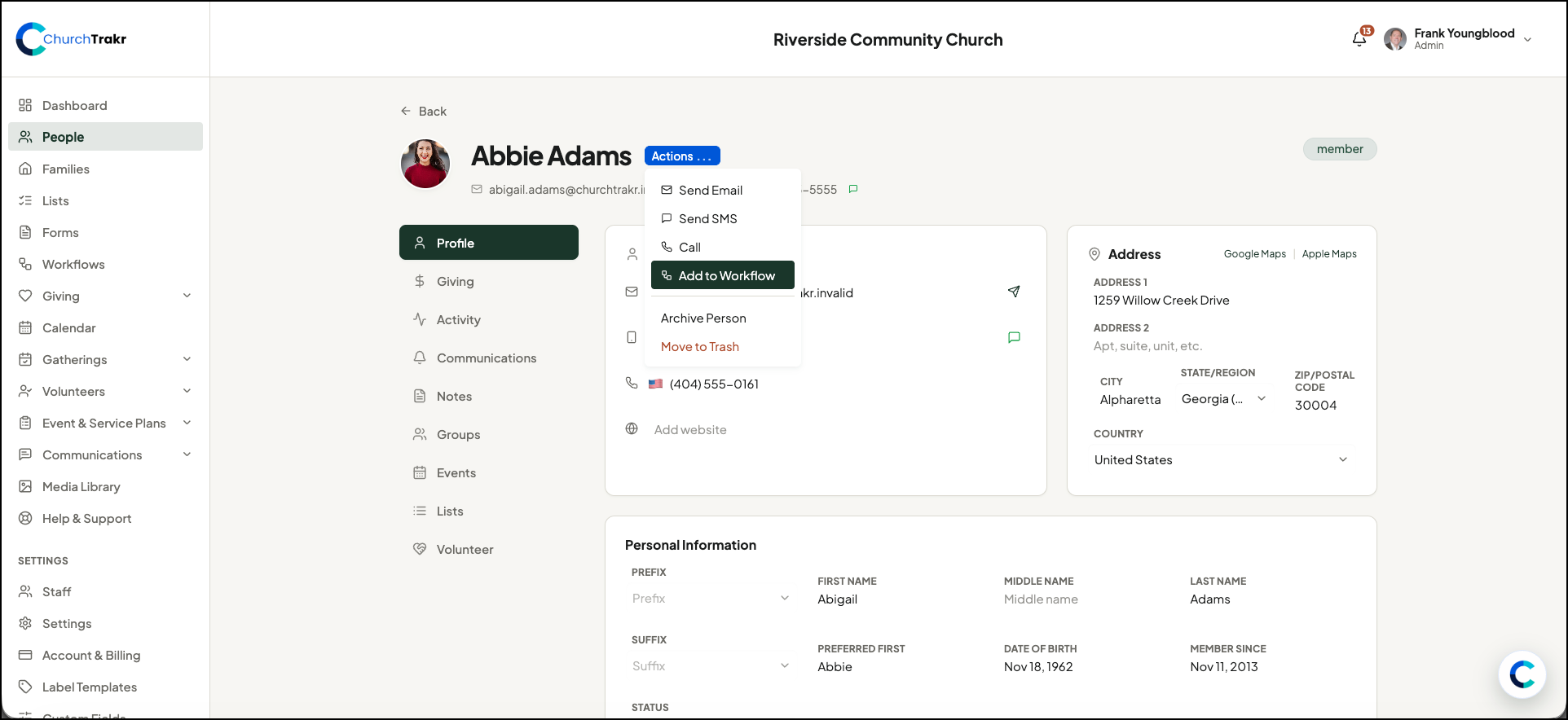
- Click Actions and then “Add to Workflow”.
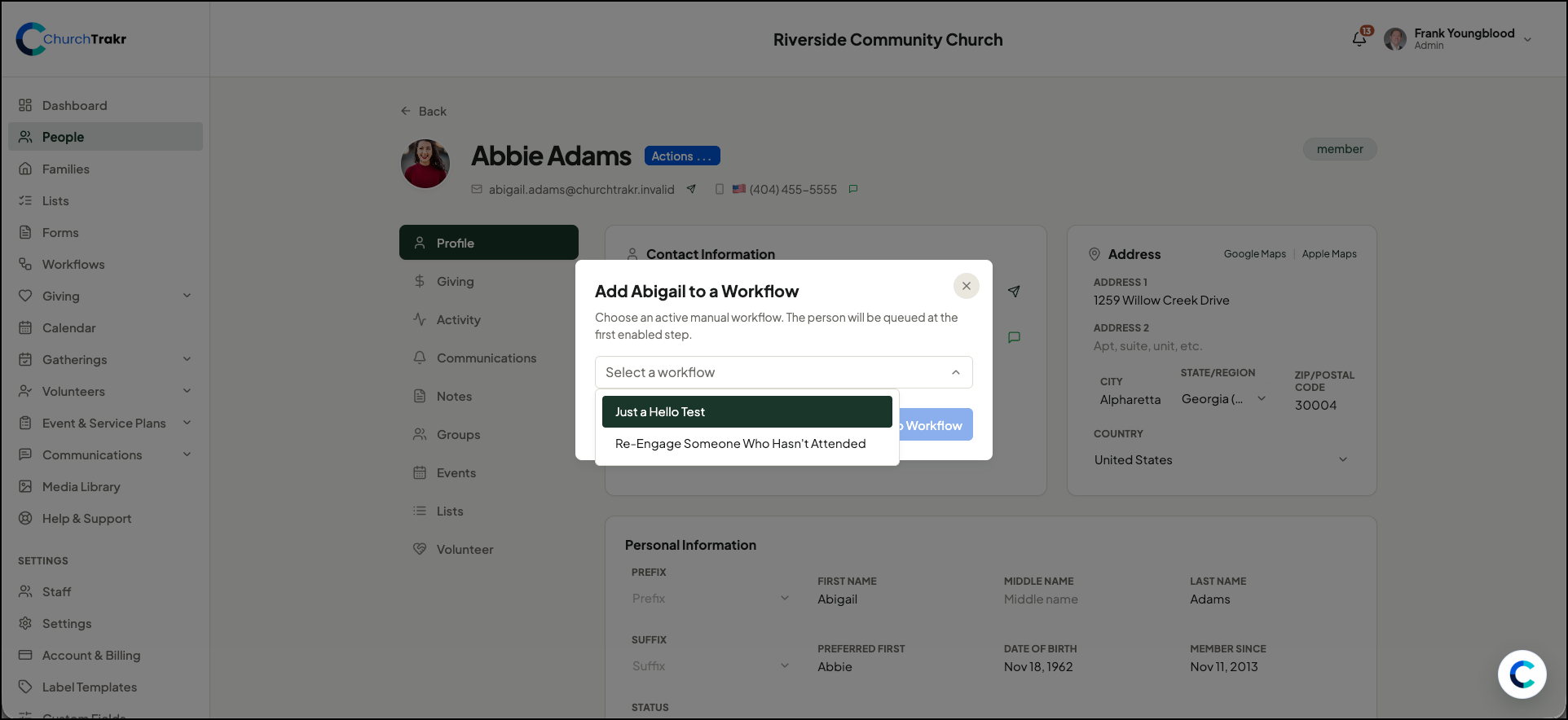
- Choose the Workflow for this Person and click “Add to Workflow”.
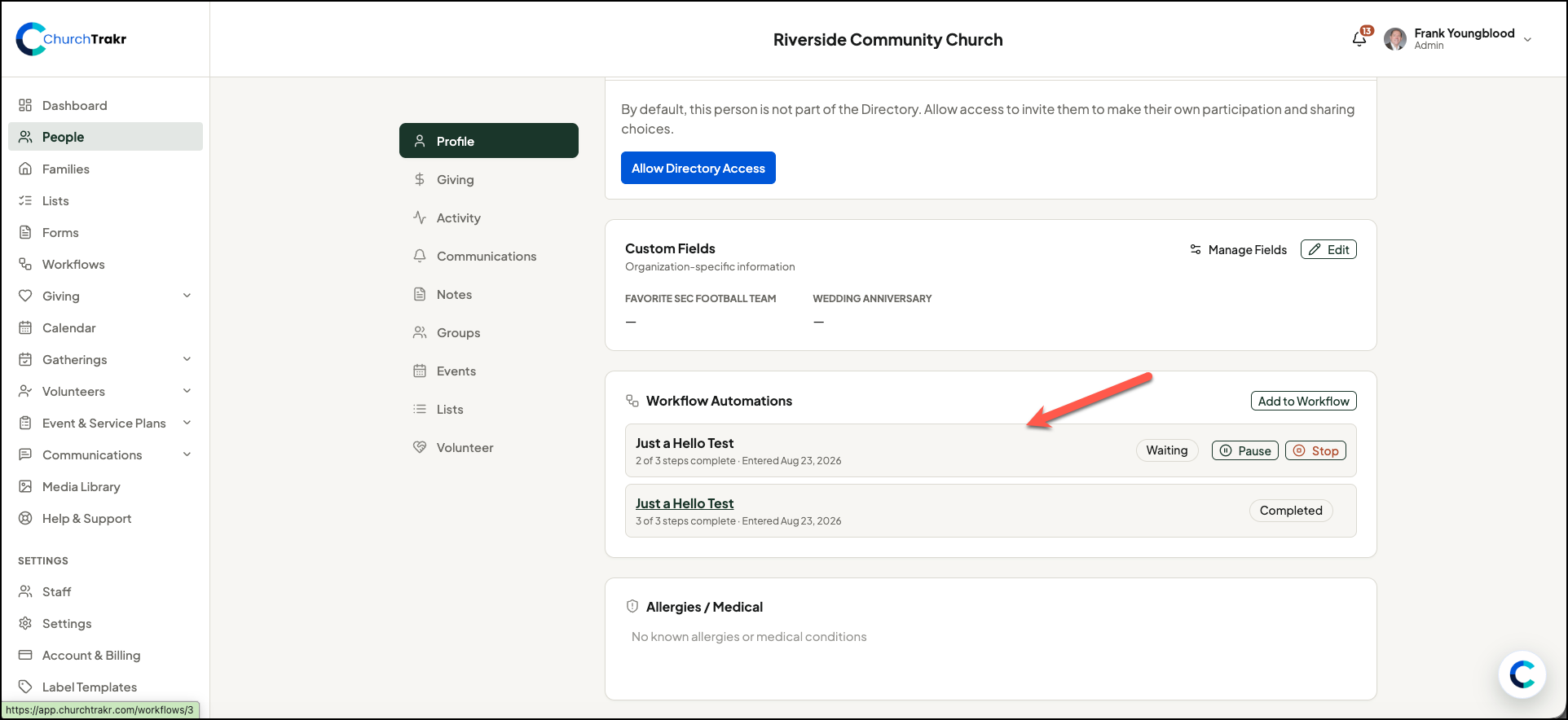
- Go near the bottom of the person’s profile and confirm they are in the Workflow.
Enroll several people
- Open People.
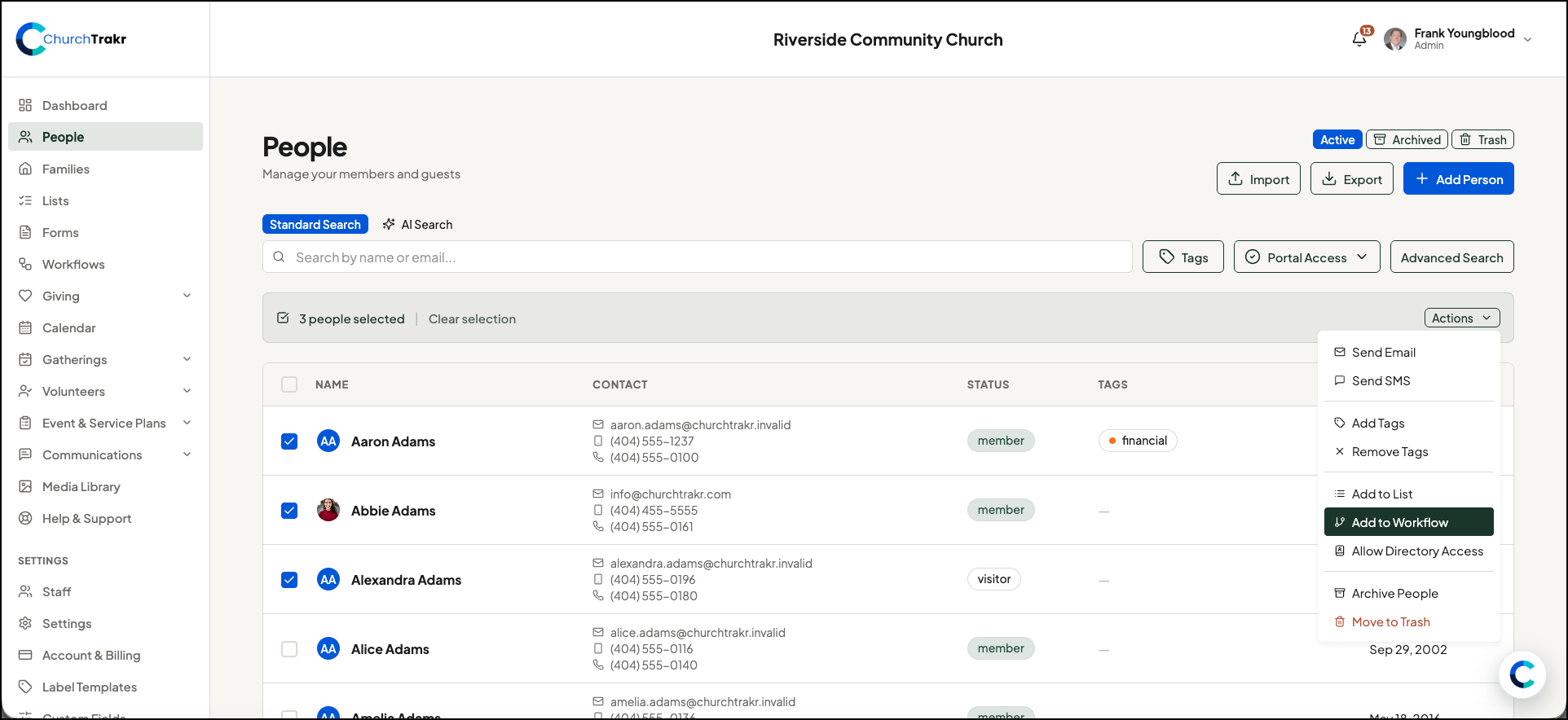
- Select the people who should enter the workflow.
- Right above the people list will be a an “Actions” pulldown.
- Select “Add to Workflow”, pick the appropriate workflow and add your chosen people to it.
Each person receives a separate workflow run, allowing ChurchTrakr to track progress individually.